


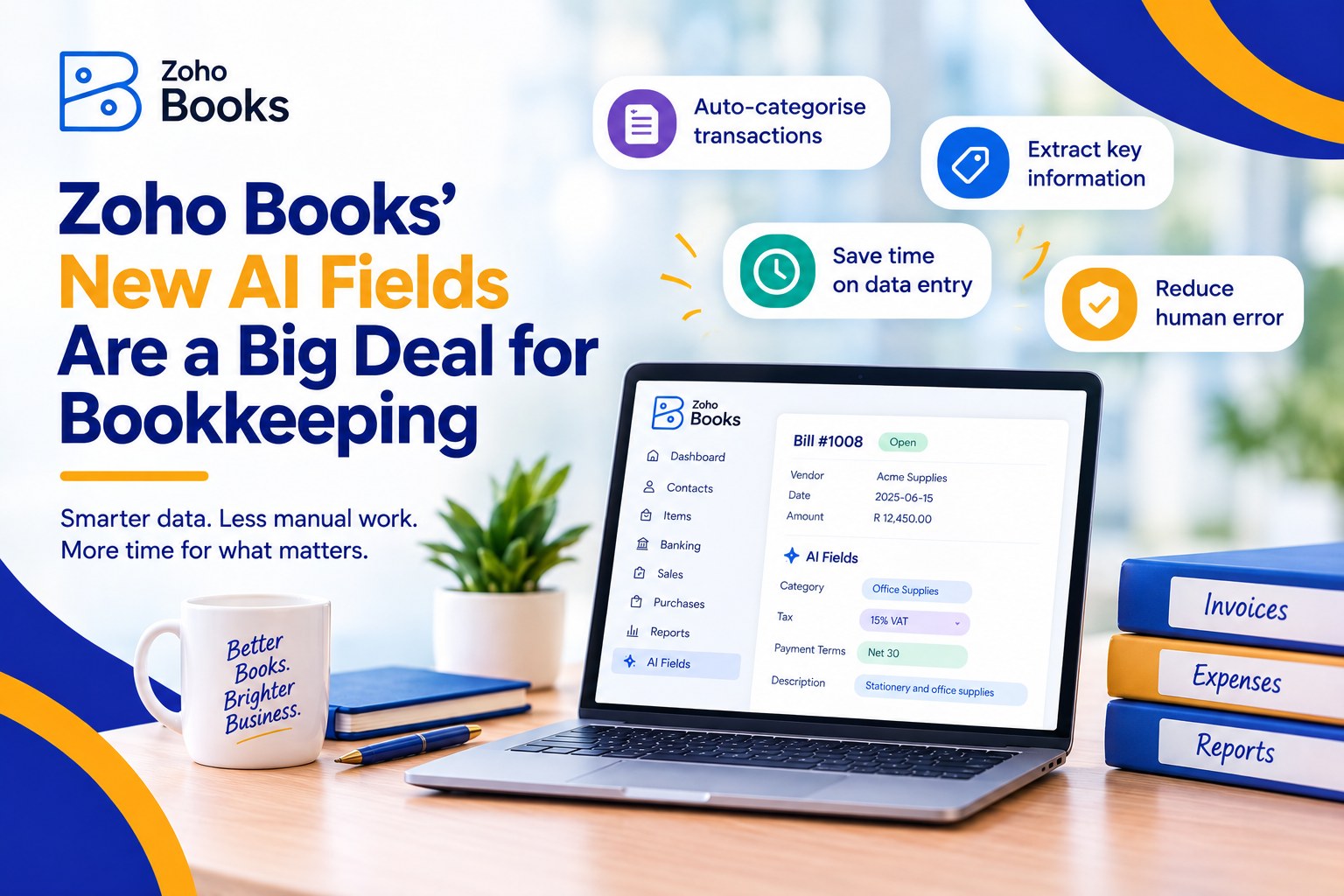
Zoho Books' New AI Fields Are a Big Deal for Bookkeeping
Every finance team has a version of the same month-end story. A pile of receipts nobody coded. A customer comment on an invoice that nobody read. A tax rate someone looked up by hand and hoped was right. None of it is complicated work. All of it eats hours that should go to the numbers that matter.
Zoho Books’ May 2026 update goes straight at that pile. Three changes are worth your attention: AI-powered custom fields, free receipt scanning, and automated sales tax for US and Canadian businesses. Here is what each one does, how to set it up, and where we would keep a person in the loop.
What Actually Changed
- AI custom fields. Three new field types that read one field on a transaction and write a result into another: Image to Text, Keyword Extraction and Sentiment Analysis.
- Free receipt scanning. Zoho says receipt scans are now free, so capturing, scanning and managing expense receipts costs nothing extra. Monthly limits depend on your plan.
- Sales tax automation (US and Canada). Zoho says it “automatically determines and applies the correct tax”, taking into account your business location, your customer’s location, tax registrations, the type of goods or services and customer exemptions.
Setting Up AI Custom Fields, Step by Step
Zoho says AI custom fields are available on Premium plans and above. Its help documentation currently lists them as Early Access, so you may need to ask support to switch them on first.
- Check your plan and ask for access. You need Premium or above. If the AI data types are not available in your organisation, email support@zohobooks.com.
- Turn on AI features. Go to Settings, then Organisation, then AI Preferences. Switch on the feature, choose an AI provider and model, and save.
- Create the custom field. Add a new custom field and choose one of the AI data types.
- Point it at an input field. Tell Zoho which field the AI should read. Once a transaction is marked as Sent, the result appears on its details page.
- Test on real transactions first. Run it on a handful of live examples and check the output before you roll it out to the team.
Three Ways Finance Teams Can Use Them
- Keyword Extraction pulls the most important words from a transaction description. Zoho’s own examples are categorising transactions and capturing item attributes such as colour or size. It gives you something to filter and report on that you did not have to type.
- Sentiment Analysis labels customer feedback on a transaction as Positive, Negative or Neutral. Our suggestion: use it to flag which overdue conversations need a softer opening before your collections call.
- Image to Text extracts printed or handwritten text from an uploaded image, describes it and detects objects. It is a good fit for handwritten delivery notes and supplier paperwork that never arrive as clean PDFs.
One practical limit: Zoho’s US pricing page shows two AI fields on each of Premium, Elite and Ultimate. With only two to use, decide which problems cost you the most time before you create them.
Free Receipt Scanning: What “Free” Means
“Free” does not mean unlimited. At the time of writing, Zoho’s US pricing page shows 50 receipt autoscans a month on the Free plan, 200 on Standard and Professional, and 1,000 on Premium, Elite and Ultimate. Limits can differ by region, so check the pricing page for yours.
The bigger win is habit, not software. Make receipt capture something people do on the day, not at month end. Agree who reviews what comes in, because a scan reads the receipt but a person still decides how it is coded.
Sales Tax Automation: Before You Switch It On
Treat this as a calculation tool. As we read Zoho’s description, it works out the right tax on your transactions. Filing and remittance stay with you and your accountant. Before you turn it on, we would check:
- Your organisation address. It sets where the tax starts, so make sure it is right.
- Your items and customers. Items should carry the right tax category, and exemption certificates should be on file for customers such as resellers, non-profits and government bodies. A certificate alone may not be enough if the item itself does not qualify.
- Recurring invoices. Do not assume older transactions are recalculated. Test on new ones and review anything already scheduled.
- Your registrations. Confirm the states or provinces you are registered in, so the system is working from the same list your accountant is.
Where We Would Keep a Human in the Loop
- AI output is a suggestion. Someone should review keyword and sentiment results before they drive a decision about a customer or a ledger.
- Know where your data goes. When you enable AI features you choose a provider and model. Zoho’s documentation for AI custom fields does not spell out data handling, so check before pointing them at sensitive customer notes.
- Tax automation is not tax advice. Questions about where you owe tax, and how to file it, still belong with a CPA.
- Fields nobody trusts get ignored. Explain to your team what each AI field means and what to do with it. Adoption is the real measure of whether this works.
Want This Working in Your Zoho Books?
We have actual accountants on our implementation teams, so we can look at your chart of accounts, your tax set-up and your month-end routine, tell you honestly which of these changes are worth switching on, and help your team use them. Book a free consultation at consultjc.com or email info@consultjc.com.
People first. Systems that scale.